



Farm Buying Guide
I. Farm Box Function
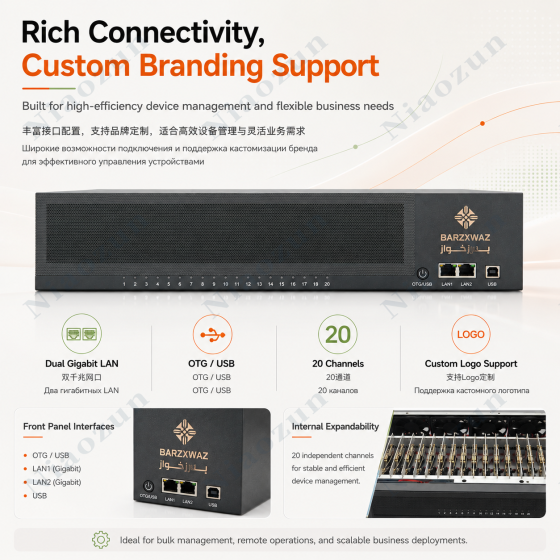
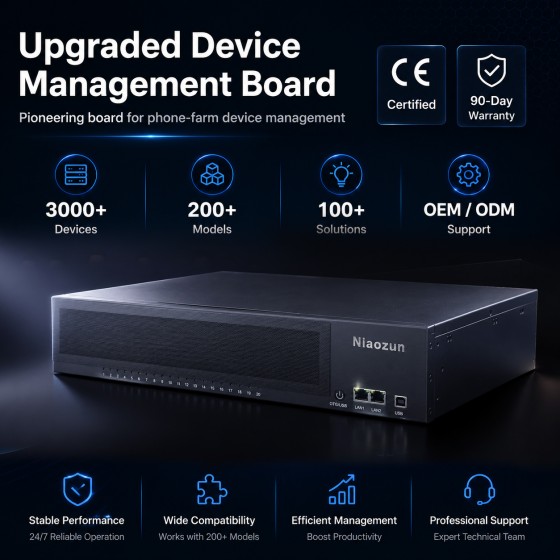
The box has both USB and OTG functions, which can be switched freely, but cannot be used simultaneously . Details are as follows:
-
USB mode: Connect to the computer via USB cable, and all 20 mobile phones can access the Internet via WiFi;
-
OTG mode: Simply plug in the network cable and connect to the computer via the router. Up to 20 mobile phones can share one network cable for internet access.
II. System Type Selection (Important: Do not disable Developer Mode and USB debugging)
Official System: The official phone system, with only developer mode and USB debugging enabled. (Note: If authorization is lost, you need to re-authorize the computer connection via the phone screen.)
-
Optimized System: Based on the official system, this system features automatic authorization for PC screen mirroring and automatic OTG screen mirroring, automatic connection to PC after factory reset, and streamlined applications. (Disadvantage: OEM version of the system is unlocked).
-
Enable Root System: Root super privileges are added on top of the optimized system. The root management software is Magisk, and it includes some fun modules that can bypass various detections. Users need to explore the specific functions themselves.
-
Other systems: We support custom development of other systems or functions. Please contact customer service for details.
III. SIM Card Support Options
1. Default configuration: Farm equipment consists of a separate telephone motherboard, without a SIM signal patch, and the SIM function is locked, and card insertion is not supported;
2. SIM Configuration Support: Same as a normal phone; a SIM card can be inserted, supporting internet access and SMS messaging via the SIM card. Note: The device has no speakerphone or microphone and does not support making or receiving calls .
3. Important Note: Due to the high density of devices in the phone farm and the fact that they have been disassembled, the signal strength of the SIM-supported version may be lower than that of a normal phone. This is normal and cannot be compared with the signal strength of a normal phone. Please be aware of this.
IV. Telephone Screen Configuration
Default configuration: Only a standalone phone motherboard is provided; no phone screen is included. Optional configurations are as follows (selecting a screen will include an additional phone frame and glass screen in the box):
Screen verification: The screen is damaged and cannot display images, but the application can detect the presence of the phone screen after installation (e.g., the TIDAL application cannot log in without a screen).
Working screen: It can display images normally and supports touch operation, but may have minor defects (such as cracks, light leakage, display lines, etc.).
V. Install cameras
Default configuration: The motherboard does not have a built-in webcam;
Add-on configuration: Selecting to add a camera will install a front and rear camera on the device, which can be used for camera verification via software.
VI. Android Version Selection Instructions
1. Android 12 and above: A new security password function has been added. Some banking payment applications or input pages that require access to this function may experience a black screen, and the computer will be unable to control input. Android 11 and below do not have this issue. Therefore, if choosing the official system, it is recommended to prioritize Android 11 and below .
2. Special Note: If the project you are using does not require a payment password or other security modules, you can ignore the above version issues;
3. Optimized System/Rooted System: The security password function has been removed during the creation process, so Android version restrictions can be ignored;
4. Special needs recommendations: If you prefer the latest Android version and need to use the official system and enter a security password, it is recommended to choose the version with a working screen . When you encounter a situation where you cannot enter the information on your computer, you can remove the phone from the device and manually enter the information through the screen.
In addition to the issues mentioned above, if you have any further questions, please contact us via email: ([email protected]) or Telegram: (@niaozunmall).